
360 Photo Booth Support
Answers, videos and downloads for every OrcaVue 360 photo booth
Still can't find what you're looking for? Contact our support team.
Knowledge base
Common questions
20 ArticlesOrcaVue platform sizes
The Air model is available with a 34, 39, or 46 inch diameter platform. Apart from the platform size, the three models share the same internal systems and are set up the same way.
The XL is 46 inches in diameter and uses a different structure that isolates the arm from platform vibration.
Weight limits for OrcaVue 360 booths
An OrcaVue Air holds up to 1,200 pounds. An OrcaVue XL holds up to 1,500 pounds.
Recommended footprint for 360 photo booths
The recommended space for 360 photo booth is dependent upon the camera lens and how much of the subject you want to view in the final shot.
You might, for example, be able to capture three-quarters of a person's height using a wide-angle phone lens about 36 inches from the face of a guest on the platform. On a 46 inch 360 photo booth, the guest's face will end up about 20 inches from the center of platform. If you then allow 4 inches for the rear of the camera and arm, the total distance form the center is 60 inches (36 + 20 + 4) or 5 feet. Double that for the required area, and it becomes 10 feet.
We suggest requesting an area that is a minimum of 10 feet by 10 feet. In fact, we actually suggest asking for 12 by 12 feet to prevent the actual space from becoming 8 by 8. If you do end up with 12 by 12, guests will appreciate the extra breathing room. NOTE: The XL model has the ability to set the arm much further out. If you are counting on that range, adjust the footprint request accordingly.
Recommended enclosure sizes for 360 photo booths
An enclosure interior must be wider than the circle the arm sweeps, including a bit of extra room so that the arm and the camera never brush the walls. In the Recommended footprint for 360 photo booths, you can follow along at how we calculate 10 feet to be the typical minimum diameter (with no margin for error). We would also suggest at least a 9 foot interior height with closer to 10 ft being a better choice so that the ceiling or top edge is not in the shot.
Unfortunately, larger enclosures with these dimensions are rarely offered because they take much more material, which results in much higher prices.
Apps that control OrcaVue 360 photo booths
The apps listed below can connect to an OrcaVue 360 booth using our Bluetooth protocol. Once connected, the apps can start/stop the arm in sync with the recording. They can also set the arm speed and direction. The steps to connect each app are provided in separate articles in the Photo booth apps category.
OrcaVue 360 photo booth arm speeds
The speed dial runs from 0 to 100, which is roughly 6 to 30 turns per minute or one rotation every 2-10 seconds for an Air or XL. In general, we consider a rotation that takes less than 3 seconds to be too fast. The Overhead is limited to 6 to 12 turns per minute or one rotation every 5-10 seconds. When the arm carries its full camera load, we recommend keeping the speed at 60 percent or less. When the direction switch is in the APP position, the app controls the speed, not the dial.
AC power requirements
All OrcaVue 360 booths are compatible with 120–240 VAC power at 50 or 60 Hz. They draw approximately 100 watts. The booths ship with a US power cord. Controllers accept a standard IEC C7 plug.
V-Mount battery life
A fully charged V-Mount battery runs an OrcaVue Air for about 500 sessions over 10 hours. On an XL or Overhead, it lasts 8 or more hours and about 300 sessions.
V-Mount battery charging
The recharge time for a fully discharged V-Mount battery is about three hours.
To recharge, plug the AC power cord into an outlet and the charging block. Then plug the charging cord into the socket marked D-Tap on the side of the battery. The LED on the block will turn green when complete.
Keeping guests safe around a 360 photo booth
Before the event, use stanchions or other barriers set about two feet outside the arm's path to keep people from inadvertently moving into the arm's space. Also create one dedicated entrance/exit position that can be easily monitored by the attendant. Finally, walk the arm through one full turn to check that it clears everything around it.
Starting and stopping an OrcaVue 360 photo booth
First ensure the booth is powered on; this can be verified by the red power LED. Also check that the direction switch is in the FWD or REV position. To start the arm rotation, click the wireless key fob or tap the optional wired foot switch (after plugging it into its labeled port on the controller). To stop it, repeat the click or tap. Test at low speeds first and make sure the arm's path is clear.
To start and stop the arm from an app, set the direction switch to the middle APP position and then connect the app to the booth. Each app has its own way of making this connection, but once it is made, the app will start and stop the arm in coordination with the recording it is creating. Some apps also respond to the key fob or foot switch. The steps to connect each app are in its own article under Photo booth apps. See "Apps that control OrcaVue 360 photo booths" for a list of ones that include the connection ability.
Vehicles that fit OrcaVue 360 photo booths
Air-34s fit in almost any vehicle. Air-39s fit in small SUVs and many trunks. The Air-46 (or XL) needs a large SUV, pickup truck or van.
Moving the XL
The XL is delivered in a reusable shipping crate that can be moved with a pallet jack or forklift. A set of wheels is included that can be attached to one side of the crate after delivery, allowing the crate to be tipped onto that side and rolled. After removing the XL from its crate, it can also be moved using the included dolly.
Largest phones the mounts can hold
Both horizontal and rotating phone mounts grip the phone across its width, the short side. The horizontal mount opens from 2.6 to 4.2 inches (66 to 106 mm). The rotating phone mount opens from 2.35 to 3.5 inches (60 to 89 mm). If your phone is in a case, be sure to measure its width with the case on. Always tighten the phone securely in the mount before you start the booth.
Largest tablets the mount can hold
The tablet mount holds a tablet in landscape by its top and bottom edges, meaning it grips the tablet across its short side. The tablet mount opens from 5.2 to 9.9 inches (132 to 250 mm). If your tablet is in a case, be sure to measure its width with the case on. Always tighten the tablet securely in the mount before you start the booth.
Devices that can be attached to the arm
For an Air model, you can use a phone, tablet, or any camera/lens with stabilization, such as a GoPro, a mirrorless camera or a DSLR. The XL can use these devices as well as unstabilized cameras/lenses.
Lights can also be mounted at the top of the arm. If you use a ring light, the camera can be mounted inside it.
Tablets for sharing and LED panel lights can be mounted lower on the arm.
The total weight of camera, batteries, and light should not exceed 6 pounds for the Air and 8 pounds for the XL. If you're close to this limit, consider using the Auxiliary Battery Kit to move the battery weight from the top to below the hinge on the arm.
Who uses the OrcaVue Air
The Air is built for photo booth businesses and is by far our most popular model; we have sold thousands in the US and around the world. It comes in three platform sizes for two to five guests, sets up in 60 seconds and runs 10 hours on a battery.
Who uses the OrcaVue Overhead
The Overhead is built for large groups and vehicles. It hangs from a truss or ceiling, so there is no platform to step onto, and guests in wheelchairs can roll right into the shot. It covers a 15-foot circle, or 19 feet with the extension arm. It packs into a Pelican case the size of a large suitcase.
Who uses the OrcaVue XL
The XL is built for professional video shoots and large photo booth activations. The primary difference between the XL and typical 360 photo booths is its isolation mode, which keeps shots stable even with cameras that have no built-in stabilization. This is achieved by an internal set of legs that support the arm independently from the platform.
Templates for platform graphic decals
For each of the OrcaVue models, a PDF template that can be given to a graphic artist is available in the Downloads section of this page.
Platform and transport
9 ArticlesTaking an OrcaVue 360 photo booth off its dolly
With the cover removed and the bottom deck facing you, tilt the booth towards you and lower it to the ground. Then move to the other side, lift the platform slightly and slip the dolly out.
Putting an OrcaVue 360 photo booth onto its dolly
While lifting the platform slightly at one side, slip the dolly in vertically under the platform edge. Then lift the booth from the opposite side and tilt it up onto the wheels.
Loading an OrcaVue Air into a vehicle
Roll the booth on its dolly so that the platform face is parallel to the rear of the vehicle. Lift the booth from the bottom of the unit and tilt it up into the cargo area or trunk. Finally, slide or drop it in.
Unloading an OrcaVue Air from a vehicle
Slide the booth toward you until it starts to lean down to the ground, then lower it slowly onto the dolly.
Vehicles that fit OrcaVue 360 photo booths
Air-34s fit in almost any vehicle. Air-39s fit in small SUVs and many trunks. The Air-46 (or XL) needs a large SUV, pickup truck or van.
Moving the XL
The XL is delivered in a reusable shipping crate that can be moved with a pallet jack or forklift. A set of wheels is included that can be attached to one side of the crate after delivery, allowing the crate to be tipped onto that side and rolled. After removing the XL from its crate, it can also be moved using the included dolly.
Tools needed to install a platform graphic decal
Soapy water in a spray bottle, painter's or masking tape, scissors, a credit card, paper towels, and a graphic made for your platform's size.
Applying a platform graphic decal
1) The graphic comes rolled up, so unroll and reverse roll it first so that it lies flat. Orient the graphic the way you want it; the controller can be at the back or the front.
2) Graphics made with our templates will leave about an eighth of an inch at the edge. Keep that gap consistent as you work around the graphic and tape it down at five or six points to hold it in place.
3) Take off the tape on one side, lift that half, peel back its backing paper and cut it off with scissors.
4) Mist the exposed platform with soapy water. This lets you lift and move the graphic if it lands in the wrong spot. It also helps with releasing air bubbles and smoothing creases.
5) Lay the peeled half down and press it flat with a credit card or your hand, working from the center out; this will move the water and air bubbles out to the edge.
6) Repeat steps 3 to 5 for the other side.
7) Do a last pass with your hand or credit card to remove any remaining bubbles. Again, from center to edge.
8) Wait 20 minutes for it to dry.
Templates for platform graphic decals
For each of the OrcaVue models, a PDF template that can be given to a graphic artist is available in the Downloads section of this page.
Power and batteries
11 ArticlesTurning an OrcaVue 360 photo booth on and off
The power switch on the controller has three positions: up runs the booth on AC power supplied by the cord, the middle position is off, and down runs it from the battery. The red light shows that the booth is on; it will blink a few times when first turned on.
Running an OrcaVue 360 photo booth on AC power
Plug the power cord into the AC port at the far left of the controller and into an outlet. Then flip the power switch up to the position marked AC. The red light will blink a few times and then hold steady when it is ready. All OrcaVue 360 booths are compatible with 120–240 VAC power at 50 or 60 Hz. They draw approximately 100 watts.
Running an OrcaVue 360 photo booth on battery power
Insert a charged V-Mount battery into the plate next to the controller on the bottom deck. Flip the power switch down to the position marked BAT. The red light will blink a few times and then hold steady when it is ready. NOTE: The battery was optional for many years, so older booths may not have a battery plate installed.
Watch: Installing/removing the batteryWatch: Switching to battery power
V-Mount battery life
A fully charged V-Mount battery runs an OrcaVue Air for about 500 sessions over 10 hours. On an XL or Overhead, it lasts 8 or more hours and about 300 sessions.
V-Mount battery charging
The recharge time for a fully discharged V-Mount battery is about three hours.
To recharge, plug the AC power cord into an outlet and the charging block. Then plug the charging cord into the socket marked D-Tap on the side of the battery. The LED on the block will turn green when complete.
Checking the V-Mount battery charge
The battery level gauge is on the side of the battery without the ports. Press the small button next to the row of LEDs. Each LED represents about a quarter of the charge, so two lights means about 50 percent.
Installing and removing the V-Mount battery
Line up the V-Mount on the underside of the battery with the bracket on the booth's battery plate. Then slide the battery forward until it clicks. To remove the battery, press and hold the button on the side of the plate and then slide the battery off.
Using the Auxiliary Battery Kit
The Aux battery kit provides a convenient way to hold a V-Mount battery at the bottom of the arm. The battery can then be used to supply power to devices further up the arm such as cameras, lights and other accessories. For Air models, most cables can be run inside the arm. The kit includes a cable that can be used to power the ring light.
Fitting the auxiliary battery mount onto the arm
Open the mount and position it on the arm. Slide the back part of the mount on first; it is a tight fit. Then rotate the bracket sideways so that the front part slides over the arm. The battery then installs onto the V-mount bracket underneath.
Auxiliary battery ports and power types
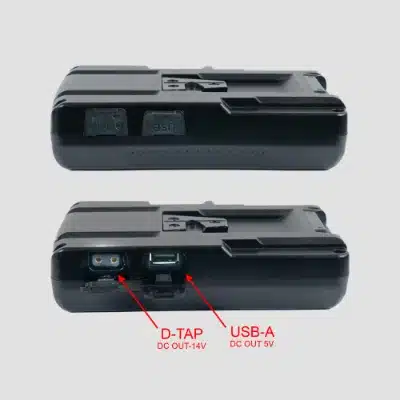
The auxiliary V-Mount battery has two ports on its side. The first is a USB-A port that supplies 5 volts at up to 3 amps (non PD). The second is a D-Tap port that supplies 14 volts.
AC power requirements
All OrcaVue 360 booths are compatible with 120–240 VAC power at 50 or 60 Hz. They draw approximately 100 watts. The booths ship with a US power cord. Controllers accept a standard IEC C7 plug.
Arm setup
9 ArticlesAttaching the Air arm
Unfold the arm and find the silver horizontal bar behind the platform's skirt. Open the quick release at the bottom of the arm and slide it onto the bar until it reaches a point where it no longer moves. Then lock the quick release.
Attaching the XL arm
Unfold the arm. Remove the thumbscrew at the bottom of the arm and then slide it over the silver connection bar under the platform. Line up the holes in the arm with the ones in the connection bar at the desired position. Re-insert the thumbscrew and tighten. Then add the four counterweights to the other side of the arm.
Opening the arm and setting its angle
Loosen the thumbscrew above the hinge about half a turn counterclockwise and pull the arm back until it rests against the push pin. To change the angle, remove the push pin from the hinge and set it in a new set of holes at the angle you want. Then rest the arm back against the push pin and retighten the thumbscrew.
Adjusting the arm's height
On an Air, open the upper quick release on the arm, slide the arm to the height you want, and then lock the quick release again.
On an XL, remove the thumbscrew near the angle bracket, pull out the top part of the arm until the holes line up, and put the thumbscrew back. For more height on the XL, use the inner extension arm in a similar manner.
Tilting the camera or light at the top of the arm
Loosen the thumbscrew at the side of the arm's head, tilt the camera or light forward or back, and then re-tighten the thumbscrew.
Running cables through the Air arm
First extend the Air's arm to uncover the hole at the bottom. Then insert one end of the cable through the top hole and feed it through until it appears at the bottom hole. To close the arm fully, remove the cable first. You can leave the cable in if you do not need to collapse the arm all the way; just be careful not to pinch it.
Many people use this feature to run a hidden power cable through the arm from a battery mounted near the hinge up to the camera and lights. The Auxiliary Battery Kit is made for this purpose and includes a cable to power the ring light.
Adding a tablet or light to the lower part of the arm
The arm's extension has several holes for attachments. Select one at the desired position and attach the ball-head mount with the thumbscrew. Next screw the tablet mount onto the screw protruding from the ball head. Finally, secure the iPad in the tablet mount and adjust accordingly.
Air arm won't collapse completely
A cable inside the arm is likely stopping it from closing. Remove the cable first if you want to completely collapse the arm.
NOTE: Some Air arms have an internal cutout that eliminates the need to remove the cable.
Counterweights for the XL
The four 5-pound counterweights act as a counterbalance to the arm, camera and lights on the opposite side. The weights can support a full load of about 8 pounds with the arm fully extended at about 110 degrees and the speed at 60 percent or less. When you first mount a camera, test at a slow speed first and then gradually increase it. If the arm turns unevenly or wobbles, you may need to reduce the load or extension length.
Cameras, lights and mounts
23 ArticlesDevices that can be attached to the arm
For an Air model, you can use a phone, tablet, or any camera/lens with stabilization, such as a GoPro, a mirrorless camera or a DSLR. The XL can use these devices as well as unstabilized cameras/lenses.
Lights can also be mounted at the top of the arm. If you use a ring light, the camera can be mounted inside it.
Tablets for sharing and LED panel lights can be mounted lower on the arm.
The total weight of camera, batteries, and light should not exceed 6 pounds for the Air and 8 pounds for the XL. If you're close to this limit, consider using the Auxiliary Battery Kit to move the battery weight from the top to below the hinge on the arm.
Largest phones the mounts can hold
Both horizontal and rotating phone mounts grip the phone across its width, the short side. The horizontal mount opens from 2.6 to 4.2 inches (66 to 106 mm). The rotating phone mount opens from 2.35 to 3.5 inches (60 to 89 mm). If your phone is in a case, be sure to measure its width with the case on. Always tighten the phone securely in the mount before you start the booth.
Largest tablets the mount can hold
The tablet mount holds a tablet in landscape by its top and bottom edges, meaning it grips the tablet across its short side. The tablet mount opens from 5.2 to 9.9 inches (132 to 250 mm). If your tablet is in a case, be sure to measure its width with the case on. Always tighten the tablet securely in the mount before you start the booth.
Mounting a mirrorless camera or DSLR to the arm
Loosen the clamp at the top of the arm and take out the camera plate. Screw the plate into the tripod thread on the bottom of the camera. Then set the plate back into the clamp and tighten.
Watch: Removing the camera plateWatch: What mounts on the arm
Mounting a GoPro to the arm
Take the camera plate out of the clamp at the top of the arm. A GoPro Hero 12 or Hero 13 has its own 1/4-20 thread on the bottom and can screw directly onto the plate. For older models, attach the plate to the GoPro mount and then attach the mount to the GoPro fitting on its bottom. Finally, set the plate back in the clamp and tighten it.
Mounting a phone to the arm
Both the horizontal and rotating phone mounts attach in the same manner.
First remove the camera plate if it is installed in the top of the arm by turning the clamp's silver knob counterclockwise. Both phone mounts have their own built-in plates on the bottom, and you can insert either one directly into the top of the clamp and then retighten. Finally, set the phone so that its rear camera faces the guests and its screen faces the operator. Be sure the clamps stay clear of the phone's buttons.
Mounting a tablet to the arm
First remove the camera plate if it is installed in the top of the arm by turning the clamp's silver knob counterclockwise. The tablet mount has its own built-in plate on the bottom and you can insert it directly into the top of the clamp and then retighten. Set the tablet so that its rear camera faces the guests and its screen faces the operator. Be sure the clamps stay clear of the tablet's buttons.
Mounting the ring light on top of the arm
If present, remove the camera plate from the clamp at the top of the arm. Insert the ring light's built-in plate into the clamp and retighten. The angle can be set by loosening the thumbscrew and adjusting.
Mounting the rectangular light on top of the arm
Screw the camera plate to the base of the rectangular light, then set the plate in the clamp at the top of the arm and tighten the clamp knob.
Mounting a phone or GoPro inside the rectangular light
Screw the phone mount's 1/4-20 thread onto the screw in the light and tighten it with the screw's knob. Face the phone so its rear camera points toward the platform and its screen points toward you.
Use the same screw to attach our GoPro mount or, for Hero 12 and Hero 13 models, directly to the built-in 1/4-20 thread on the bottom.
Mounting a phone, tablet, GoPro or camera in the ring light
First remove the rail mount from the light. Use the gold 1/4-20 screw protruding from the mount to attach either a phone, tablet or GoPro mount. Mirrorless cameras, DSLRs and GoPro Hero 12 and 13 models can attach directly to the gold screw by using the female 1/4-20 socket located on the bottom. Once attached, put the rail mount back into the light and tighten securely.
Watch: Install phone in ring lightWatch: Other cameras in the ring light
Choosing a phone mount for the rectangular light
The phone mount included with the rectangular light is not very sturdy and may not give the best shot, so we recommend a metal phone mount, such as the one that came with your 360.
Inserting and removing the ring light batteries
The light runs on two batteries. Line up the silver contacts on the battery with the contacts on the light and slide the battery in until it clicks. To take one out, press the button at the top and pull the battery up and then out.
Turning on the ring light
After installing the batteries, use the red switch to turn the light on and off.
Ring light brightness and color temp
The top dial sets the brightness from 0 to 100 and is shown on the light's rear screen; a value around 40 is usually appropriate. The purpose of the ring light is to remove shadows from a subject's eyes and to reveal details in dark clothing. It is not intended to light an entire space; doing so will wash out the guests on the platform.
The bottom dial sets the color temperature. Match it to the light around you, typically using higher numbers (cooler) in daylight and lower numbers (warmer) under indoor incandescent lights.
Ring light battery level
To check the the level of the individual batteries on the ring light press the battery 1 or battery 2 button and then check the display. A reading of 10 means full; a reading of 7 means 70 percent.
Powering a phone from the ring light
In order to provide power to a phone from the ring light, plug a usb cable into USB-A port on the rear of the light and then into the phone's lightning or USB-C port. Be aware that charging stops when the light is switched off, so to keep charging without using the light, leave it on with the brightness at 0.
Turning on the rectangular light
Hold the power button to turn the light on. Initially all four panels will be lit. Tapping the power button will switch to two-panel mode and back.
Rectangular light brightness and color temp
The top dial sets the brightness or intensity of the light. The purpose of the rextangualar light is to remove shadows from a subject's eyes and to reveal details in dark clothing. It is not intended to light an entire space; doing so will wash out the guests on the platform.
The bottom dial sets the color temperature. Match it to the light around you, typically using higher numbers (cooler) in daylight and lower numbers (warmer) under indoor incandescent lights.
Charging the rectangular light
The charging port is on the outside corner of the light and takes a USB-C cable such as the one that comes with it. The battery gauge on the side shows the charge level.
Powering a phone from the rectangular light
The USB port on the inside corner can charge a phone, camera or other device mounted in the light. Note: Using the light in this manner will lower the total charge and reduce the light's run time.
Shooting vertical video with the rectangular light
If you mount the camera plate on the side of the light instead of the bottom, you will be able to shoot vertical or portrait videos. If you have the rotating phone mount, you can simply swap the orientation instead.
Rectangular light twists on the arm
The camera plate on the bottom of the light does not physically lock into place. This means that contact with a guest can cause it to rotate slightly. If this is a frequent problem, try tightening the camera plate screw. One advantage of the ring light is that its fixed base prevents it from twisting.
Operation
21 ArticlesStarting and stopping an OrcaVue 360 photo booth
First ensure the booth is powered on; this can be verified by the red power LED. Also check that the direction switch is in the FWD or REV position. To start the arm rotation, click the wireless key fob or tap the optional wired foot switch (after plugging it into its labeled port on the controller). To stop it, repeat the click or tap. Test at low speeds first and make sure the arm's path is clear.
To start and stop the arm from an app, set the direction switch to the middle APP position and then connect the app to the booth. Each app has its own way of making this connection, but once it is made, the app will start and stop the arm in coordination with the recording it is creating. Some apps also respond to the key fob or foot switch. The steps to connect each app are in its own article under Photo booth apps. See "Apps that control OrcaVue 360 photo booths" for a list of ones that include the connection ability.
Setting direction and speed
Push the direction switch up (FWD) for clockwise rotation or down (REV) for counterclockwise, then set the speed with the rotary dial: left is slower and right is faster.
When the direction switch is in the middle APP position, a connected app sets the direction and speed and the dial has no effect.
APP position on the direction switch
The APP position of the Direction switch lets a photo booth app control the arm via a Bluetooth connection. When connected, the app starts and stops the arm rotation in synchronization with the video recording. It also sets the direction and the speed. The speed dial has no effect when set to APP.
Red light on the controller
The red light above the power switch shows that the unit has power. When first turned on, it will blink several times and hold steady showing that the unit is ready. It also blinks once during each rotation of the arm.
Green light on the controller
The green light on the controller flashes each time you press a paired key fob, allowing you to verify that the click was received. The small recessed red button beside it is used to pair a new key fob and uses this light also; see "Pairing a new key fob (remote)."
Pairing a new key fob (remote)
In order to add a new key fob, use a paper clip to press the inset red button marked Key Fob on the controller once. The green light will blink and then remain lit. Press the new key fob; the light will blink again and turn off. The key fob is now paired. The XL and Gala do not have this ability.
Changing the battery in the key fob (remote)
Use a sharp edge to separate the two halves of the key fob's shell at the seam around its middle. The battery type is marked on the battery; buy the same type at a drugstore and swap it in. When you snap the shell back together, make sure the rubber membrane is seated properly first.
Stopping the arm at the same position
The return to home feature stops the arm at roughly the same position after each session.
To set the position, hold the key fob button for four seconds; the arm's current position will become its home position. It will take a few sessions for the return position to calibrate; this calibration is dependent upon the load on the arm, so be sure to add the final equipment before setting.
The position will persist between power cycles.
To disable the home position, move the direction switch to a new position.
Turning off return to home
Move the direction switch from any setting to a new one. This will clear the home position. Hold the key fob for four seconds to set a new position.
Arm doesn't stop at the home position
Two possible reasons:
1) For the first few runs the booth calibrates the final position, so it may be a little or a lot during these runs. Eventually, it should return to within 15-20 degrees of the home position. In order to calibrate, the load on the arm must be consistent, so set up your equipment on the arm before setting the home position.
2) The home position was already set from a previous session and holding down the key fob told the unit to forget the home position (instead of setting it). To set the position reliably, first change the direction switch to a new position and then back to the former one. This will clear the home position. Next hold the key fob for four seconds and the new position will be set.
Using an OrcaVue 360 photo booth without power
You can use an OrcaVue Air without power by placing the unit in manual mode, which is a configuration where the belt is removed from around the motor pulley, allowing the arm to swing freely. If you're stuck in a venue without power or the battery has been left behind, switching to manual mode can avert a crisis. See "Switching to manual mode" for instructions.
Switching to manual mode
Push in the lever attached to the motor to release tension on the belt and then pop the belt off of the motor pulley. The arm will then spin freely. This is easier with the booth on its side so that you have more leverage.
Switching back to automatic mode
Align the belt in its groove on the hub, press in the lever next to the motor and slide the belt back over the motor pulley. This is easier with the booth on its side which will give you more leverage.
Syncing fog and confetti machines with DMX
If your controller includes a DMX port, you can connect it to effects machines, such as confetti cannons and fog jets, and sync them to fire while recording. Here's how:
1) Plug the male end of a three-pin XLR cable into the DMX output port on the controller, and the female end into the effects machine.
2) Set the machine's DMX address. The first digit is how many seconds elapse after the arm starts before the effect begins; the second digit is how many seconds it runs. Addresses run from 01 to 59; for example, 46 fires the effect four seconds after the start and runs it for six seconds.
3) Run the booth as usual. The effects machine will automatically respond to the state of the booth.
Arm doesn't rotate
1) First check the red power light on the controller. If it's off, the booth needs power: plug in the power cord or install a charged battery, and set the power switch to AC or BAT to match.
2) If the booth has power, check the direction switch. In the middle APP position, an app controls the booth, and the booth will not respond to the key fob or foot switch; set the switch to FWD or REV.
3) If it still won't spin, check that the green light on the front of the controller flashes when you press the key fob. If it doesn't, the key fob may need a new battery (see "Changing the battery in the key fob (remote)"). You can still test the booth with a foot switch, or by setting it to APP and starting it from a connected app.
Arm doesn't stop immedaiately
The return-to-home position has been set and the arm is rotating until it can stop at that point. To disable this behavior, change the direction switch to a new position and then return it.
OrcaVue 360 photo booth arm speeds
The speed dial runs from 0 to 100, which is roughly 6 to 30 turns per minute or one rotation every 2-10 seconds for an Air or XL. In general, we consider a rotation that takes less than 3 seconds to be too fast. The Overhead is limited to 6 to 12 turns per minute or one rotation every 5-10 seconds. When the arm carries its full camera load, we recommend keeping the speed at 60 percent or less. When the direction switch is in the APP position, the app controls the speed, not the dial.
Transport and isolation modes on the XL
The XL operates in two modes: transport and isolation. Isolation mode disconnects the arm from the center hub and supports it with an independent set of legs; this keeps the shot free of vibrations caused by movement on the platform, even when the camera has no built-in stabilization. Transport mode is used when moving the XL between events. A set of barrel bolts is used to switch between modes. You do not need to operate in isolation mode if you are using a stabilized camera/lens.
To switch into isolation mode, move each of the six barrel bolts on the legs to the unlocked position. To return to transport mode, keep the booth on the floor, gently lift each leg, and move its barrel bolt back to the locked position. Never lift or move the XL while it's in isolation mode.
Counterweights for the XL
The four 5-pound counterweights act as a counterbalance to the arm, camera and lights on the opposite side. The weights can support a full load of about 8 pounds with the arm fully extended at about 110 degrees and the speed at 60 percent or less. When you first mount a camera, test at a slow speed first and then gradually increase it. If the arm turns unevenly or wobbles, you may need to reduce the load or extension length.
Hanging the Overhead 360 booth from a truss
The Overhead unit mounts under an 8-12 inch box truss using four 2-inch truss clamps. It comes with the clamps and a set of hardware designed to assist with lifting it into position.
To install the Overhead, clip one end of the supplied rope into the eye bolt protruding from the mounting plate. Then fix one pulley to the top center of the truss and the other to a corner, and run the rope through both pulleys to the ground. Hoist the unit up against the bottom of the truss, tie off the rope, and then use a ladder to fasten all four truss clamps.
Foot switch interface
The foot switch jack accepts a 1/4" TR plug. It expects a normally closed interface. In other words, the unit responds to an open condition. There's a debounce of two seconds to silence double taps on the physical interface. If you use the jack for automation purposes, be sure your interface does not introduce spikes, noise or ESD. The internal circuit is designed only for the foot switch we provide and does not carry protections for general purpose applications.
Photo booth apps
15 ArticlesApps that control OrcaVue 360 photo booths
The apps listed below can connect to an OrcaVue 360 booth using our Bluetooth protocol. Once connected, the apps can start/stop the arm in sync with the recording. They can also set the arm speed and direction. The steps to connect each app are provided in separate articles in the Photo booth apps category.
What you need to work with a 360 photo booth app
At the very least you will need an iPhone that records at 120 frames per second and a supported app with an account or plan that includes video. You may want to add an additional camera such as a GoPro, a mirrorless camera or a DSLR. You will need to consult the app creator to determine which cameras are supported and the suggested manner for connecting them. You may also want to add an iPad that can be used as a sharing station; this is helpful because it lets guests view their videos while the primary phone or camera continues to record. Lastly, you will probably need some sort of internet connection to deliver the videos to guests. Typically this is provided by a phone plan, venue Wi-Fi or a hotspot.
What you need to use Snappic with an OrcaVue 360 photo booth
You need a Snappic Business account (formerly called Enterprise) and an iPhone or iPad that records at 120 frames per second. Many operators find that a second iPad is useful to have as a sharing station; this lets guests view and share their videos while the first device films the next group.
Connecting an OrcaVue 360 photo booth to Snappic
Turn the booth on and set the controller's direction switch to APP. On the camera iPhone or iPad, open your event, tap Select Accessories and choose your OrcaVue's serial number. When a gray bar appears over it, tap Done. Snappic is now connected and will control when the arm starts and stops.
Once connected, set the arm speed and direction in the Accessories tab to after selecting Start Booth.
Connecting an OrcaVue 360 photo booth to Gruvy
Turn the booth on so the app can find it and set the direction switch on the controller to APP. In Gruvy, go to the Bluetooth page, tap Connect to OrcaVue and choose your booth. The icon turns green when the booth is connected.
Once connected, the arm's speed and direction can be set there also.
Connecting an OrcaVue 360 photo booth to Curator
Turn the booth on and set the controller's direction switch to APP. Open Curator Live on your iPad, go to the app's Bluetooth settings, and tap OrcaVue at the bottom of the list. Scan for OrcaVue devices and tap your booth when it appears; you do not need to pair it in the iPad's own Bluetooth settings. Curator then starts and stops the arm, sets its speed and direction, and keeps the spin in step with the recording. If the booth does not appear, check that it has power and is set to APP, then scan again. Also make sure Curator Live is allowed to use Bluetooth in the iPad's Settings app.
Connecting an OrcaVue 360 photo booth to Touchpix
Touchpix connects to an OrcaVue booth over Bluetooth on an iPhone or iPad; its Android version does not have the link. Set the controller's direction switch to APP. In Touchpix, open the Settings side menu, choose Bluetooth Methods under Bluetooth, tap the Orcavue tab, and tap Connect to Orcavue. When your booth appears in the list, select it and tap Connect, then go back; the booth now shows as connected. Set the speed and direction in the Touchpix menu. The arm then starts turning when Touchpix starts recording, and a press of the key fob can start the arm and the app at the same time.
Connecting an OrcaVue 360 photo booth to Booth.Events
Booth.Events version 1.53.3 or later connects to an OrcaVue booth over Bluetooth from an iPhone, iPad or Mac. Set the controller's direction switch to APP and turn on Bluetooth on your device. Launch your event and hold two fingers on the screen to open the in-event menu; when the booth is in range, an OrcaVue item appears there. Tap it, tap Connect, and choose the direction (forward or reverse), the speed (0 to 100) and the delay after the countdown starts. The app then starts the arm at each countdown and stops it when the capture ends. It reconnects to the same booth on its own, even after a short power loss; tap Disconnect to stop this behavior.
Connecting an OrcaVue 360 photo booth to Darkroom
Darkroom connects to an OrcaVue booth over Bluetooth from a Windows computer running its booth software. Turn the booth on and set the controller's direction switch to APP. Pair the booth with the computer in the Windows Bluetooth settings first. Then, in the Darkroom software, go to Booth, Global Setting, Device Control and click the Bluetooth icon. When your booth appears in the Bluetooth window, select it and choose OK. The OrcaVue controls then appear at the top, and you can add the booth to the phase of the session where it should start. If the booth does not connect, update the Darkroom software, since an update fixed an OrcaVue Bluetooth problem.
Connecting an OrcaVue 360 photo booth to LA Photo Party
Turn the booth on and set the controller's direction switch to APP. In the LA Photo Party software, open the Misc tab, click OrcaVue and then Enable OrcaVue. Click refresh and wait for your booth's name to appear, or choose it from the dropdown list. Set the speed, tick Reverse to turn the arm the other way, choose whether recording starts with a countdown or right away, and click Write to save. To test, press the key fob or the start button on the screen to begin a session. Make sure there is room around the booth before the arm starts turning.
Best phone camera settings for 360 photo booth videos
We use the phone's rear ultra-wide camera set to auto exposure, continuous focus at 120 frames per second and stabilization on.
Countdown and recording length for 360 photo booth videos
Set a countdown of three to five seconds in order to give the arm time to get up to speed before the recording starts. Set the record time to 3-4 seconds. To get everyone in the shot, set the arm's speed so that one full turn takes less time than the recording. Keep the finished video to about 12 seconds and no more than 15. For example, a three-second recording rendered at quarter speed lasts 12 seconds.
Setting direction and speed
Push the direction switch up (FWD) for clockwise rotation or down (REV) for counterclockwise, then set the speed with the rotary dial: left is slower and right is faster.
When the direction switch is in the middle APP position, a connected app sets the direction and speed and the dial has no effect.
App doesn't start the arm or change speed / direction
Although the booth is connected, it ignores the app's commands until you move the direction switch to the APP middle position. Many apps show a notice when this happens.
APP position on the direction switch
The APP position of the Direction switch lets a photo booth app control the arm via a Bluetooth connection. When connected, the app starts and stops the arm rotation in synchronization with the video recording. It also sets the direction and the speed. The speed dial has no effect when set to APP.
Gruvy 360 app
18 ArticlesConnecting an OrcaVue 360 photo booth to Gruvy
Turn the booth on so the app can find it and set the direction switch on the controller to APP. In Gruvy, go to the Bluetooth page, tap Connect to OrcaVue and choose your booth. The icon turns green when the booth is connected.
Once connected, the arm's speed and direction can be set there also.
Recommended general settings in Gruvy
A four-second record time keeps the finished video a good length after the slow motion and effects. A countdown of three to five seconds gives the arm time to get up to speed before recording starts, and a ten-second sharing timeout works well.
Choosing the video quality in Gruvy
We usually use HQ. Higher quality means larger files, which take longer to share over a slow connection, and social media compresses them anyway. The network speed test shows your download and upload speeds and how long an upload takes, so you can adjust.
What the motion trigger in Gruvy does
It starts recording when it detects the arm moving. We leave it off because Gruvy will connect to the OrcaVue platform directly.
Choosing the resolution and aspect ratio in Gruvy
Full HD works well; choose 4K for more quality. Aspect ratios 1 to 5 run from vertical video, as on TikTok, to landscape, as on YouTube. We use 3, the square format, which shares easily on every platform.
Adding an overlay or a design theme in Gruvy
On the design page, upload your own overlay to sit on top of every recording, or download one of the themes in the app. Choose a category and a theme, tap the plus sign to open it in the designer, change it as you like and save it as a preset. Saved designs appear under load design presets.
Adding a branded clip before or after each Gruvy video
On the effects page, the pre-roll and post-roll buttons let you upload a clip to play before or after the recording, such as a brand marketing video.
Adding effects such as hyper zoom or collage in Gruvy
On the effects page, tap Add Effect; each video can have up to five. Tap an effect to set when it starts and stops with the sliding bar, where 0 to 1 is the whole video, and to change its color. To preview, record a clip or import one.
Adding music to Gruvy videos
On the audio page, tap the white box to upload an audio file from your device, or choose one of the included tracks. Tapping a track plays a preview.
Sharing Gruvy videos
Videos can be delivered by email, WhatsApp, QR code, AirDrop or general sharing; we leave them all on. You can add a message and your company name to send with each video.
Sharing Gruvy videos with no internet
The second sharing page has an option for venues with no internet, where guests scan a QR code that connects them to a local network.
Saving Gruvy videos to the cloud
The cloud page links a Google Drive or Dropbox account; the app asks for permission when you turn it on.
Showing Gruvy videos on a TV
TV mirror shows either the live session, with the countdown, live view, finished video and a thank you screen, or a slideshow that replays every video. The screen turns green while mirroring.
Sharing queue in Gruvy
The sharing queue lists the videos waiting to be sent. You can clear the queue, or send everything in it by using the send out queue button.
Finding a guest's video in Gruvy
Tap the gallery button on the right of the record screen. It holds every video of the session, so you can review and share one that a guest missed.
Starting a recording in Gruvy
Press your paired remote or the record button in the middle of the record screen. After the countdown and the recording, Gruvy adds the effects, and you can then preview, delete or share the video.
App doesn't start the arm or change speed / direction
Although the booth is connected, it ignores the app's commands until you move the direction switch to the APP middle position. Many apps show a notice when this happens.
Troubleshooting
6 ArticlesArm doesn't rotate
1) First check the red power light on the controller. If it's off, the booth needs power: plug in the power cord or install a charged battery, and set the power switch to AC or BAT to match.
2) If the booth has power, check the direction switch. In the middle APP position, an app controls the booth, and the booth will not respond to the key fob or foot switch; set the switch to FWD or REV.
3) If it still won't spin, check that the green light on the front of the controller flashes when you press the key fob. If it doesn't, the key fob may need a new battery (see "Changing the battery in the key fob (remote)"). You can still test the booth with a foot switch, or by setting it to APP and starting it from a connected app.
Arm doesn't stop immedaiately
The return-to-home position has been set and the arm is rotating until it can stop at that point. To disable this behavior, change the direction switch to a new position and then return it.
Arm doesn't stop at the home position
Two possible reasons:
1) For the first few runs the booth calibrates the final position, so it may be a little or a lot during these runs. Eventually, it should return to within 15-20 degrees of the home position. In order to calibrate, the load on the arm must be consistent, so set up your equipment on the arm before setting the home position.
2) The home position was already set from a previous session and holding down the key fob told the unit to forget the home position (instead of setting it). To set the position reliably, first change the direction switch to a new position and then back to the former one. This will clear the home position. Next hold the key fob for four seconds and the new position will be set.
Air arm won't collapse completely
A cable inside the arm is likely stopping it from closing. Remove the cable first if you want to completely collapse the arm.
NOTE: Some Air arms have an internal cutout that eliminates the need to remove the cable.
App doesn't start the arm or change speed / direction
Although the booth is connected, it ignores the app's commands until you move the direction switch to the APP middle position. Many apps show a notice when this happens.
Rectangular light twists on the arm
The camera plate on the bottom of the light does not physically lock into place. This means that contact with a guest can cause it to rotate slightly. If this is a frequent problem, try tightening the camera plate screw. One advantage of the ring light is that its fixed base prevents it from twisting.
Hardware videos
OrcaVue Air Overview & Setup
Learn how to set up and run an OrcaVue Air 360 photo booth, from power and the controller to the arm, cameras and lights.
Chapters
Loading and Unloading from a Vehicle
Learn how to load an OrcaVue Air into a car or SUV and take it out again.
Dolly Pro Tips
Learn the easiest way to move the 360 booth into place and set it down.
Arm Setup
Learn how to open and angle the Air's camera arm, run a cable inside it, attach it to the platform, and mount a light or a tablet.
Chapters
Controller Walk-Through
Learn what each switch, dial, light and port on the OrcaVue controller does.
Chapters
Battery Option Walk-Through
Learn how to charge the V-Mount battery, check its level, and install and remove it.
Chapters
Ring Light Setup
Learn how to set up the ring light kit, mount a phone in it and attach it to the camera arm.
Chapters
Rectangular Light Setup
Learn how to use the rectangular light, charge it, mount a phone in it and attach it to the camera arm.
Chapters
Using DMX for Special Effects
Learn how to connect a fog jet, confetti cannon or other DMX effects machine to the controller and coordinate when it fires.
Switching Between Automatic and Manual Modes
Learn how to disconnect the belt from the motor so you can turn the arm manually when there's no power, and how to restore it for automatic (motorized) operation.
Using the Auxiliary Battery Kit
Learn how to fit the auxiliary battery mount to the camera arm so a battery can power the camera and accessories at the top of the arm.
Adding a Wireless Remote (Key Fob)
Learn how to pair a new wireless key fob with the OrcaVue controller.
Return to Home
Learn how to make the arm stop at the same spot after every session with the return to home feature.
Platform Graphic Install
Learn how to put a platform graphic on your booth without bubbles or creases using just tape and soapy water.
Chapters
OrcaVue XL Overview & Setup
Learn how to set up the OrcaVue XL, from power and isolation mode to the camera arm, counterweights and first spin.
Chapters
OrcaVue Gala Overview & Setup
Learn how to set up the OrcaVue Gala, from power and the controller to the camera arm, counterweights and first spin.
Chapters
App videos
Using the Gruvy 360 Photo Booth App to Create Your First Event
Learn how to set up your first event in the Gruvy 360 photo booth app, page by page, from the camera settings to sharing.
Chapters
Use the Gruvy App to Control an OrcaVue 360 Photo Booth
Learn how to connect your OrcaVue 360 photo booth to the Gruvy app over Bluetooth, allowing the app to start and stop the arm.
Using Snappic with OrcaVue 360 Photo Booths
Learn how to set up a Snappic event for an OrcaVue 360 booth.
Chapters